Interface tour
ASH Draw Studio is laid out like AutoCAD, so most things are where you expect them. This tour goes from the top of the window to the bottom.
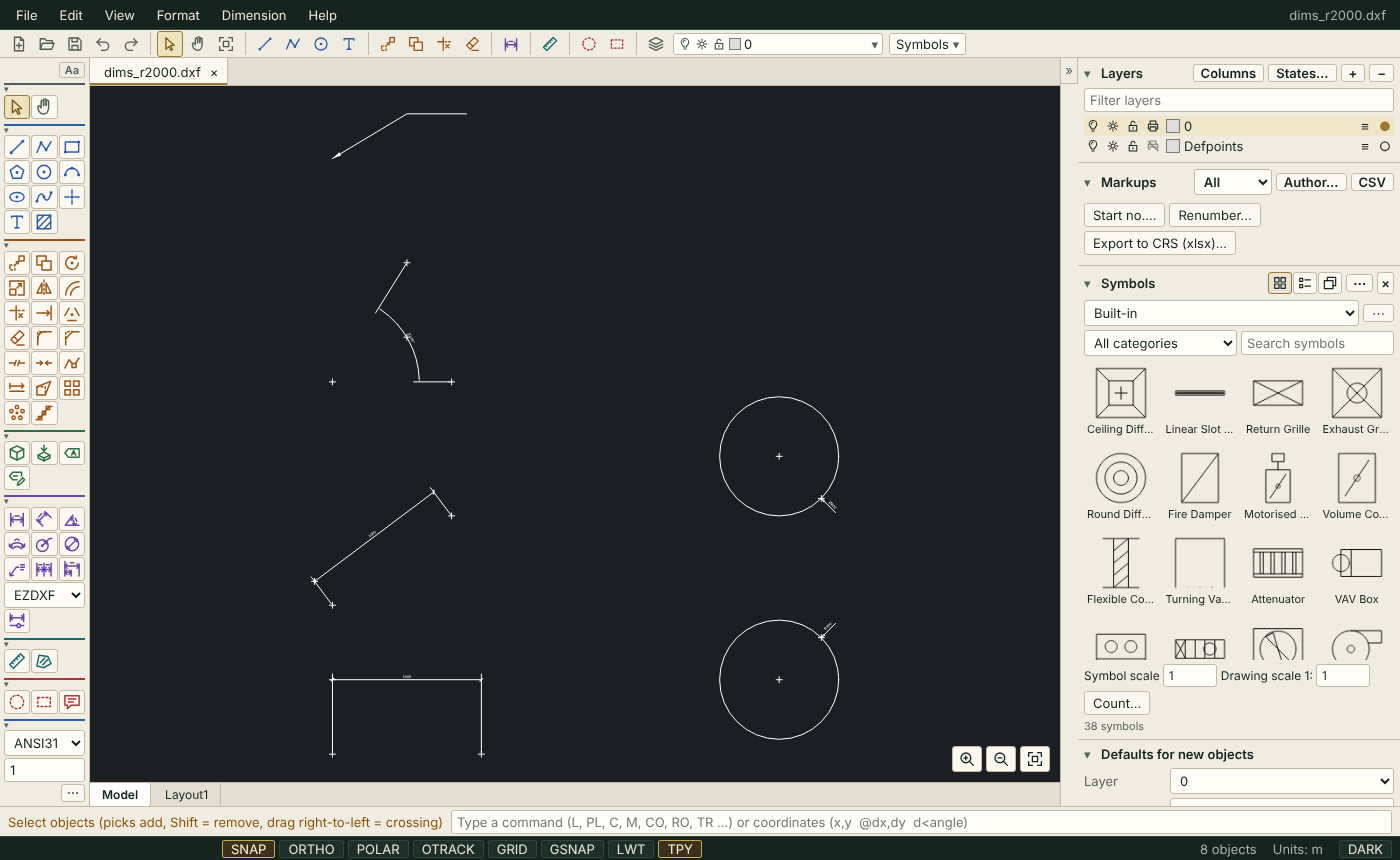
Menu bar and Quick Access
In the app: Help ▸ Show me the menu bar. It has File, Edit, View, Format, Dimension and Help. Use the arrow keys to move through a menu and Esc to close it.
Under the menus, the Quick Access row (#qat) holds one-click buttons: New, Open, Save, Undo, Redo, Select, Pan, Zoom extents, a few draw and modify tools, Dimension, Measure, the markup tools and the Layers panel. It also contains the layer list and the Symbols palette. In the app: Help ▸ Show me the row, or In the app: Help ▸ Show me the Save button. To change what it holds, see Customise toolbars.
Tool panel
In the app: Help ▸ Show me the tool panel (#tools). Its groups are Select, Draw, Modify, Block, Dimension, Inquiry and Markup.
- Hover over a button to see its name and command alias, for example
LINE(L). - Click a group heading to fold or unfold it.
- Use View ▸ Toolbars to move the panel (Left, Right, Top, Hidden), switch between Full, Compact rail and Floating layouts, or show tool labels.
Tip
Tools you hide still run from the command line.
Command line
The command line (#cmd) sits at the bottom. In the app: Help ▸ Show me it. Type a command or alias (L, PL, C, M, CO, RO, TR) and press Enter, or type coordinates such as 10,20, @5,0 or d<45. The text to its left (#prompt) tells you what the active tool wants next. In the app: Help ▸ Show me the prompt.
↑ and ↓ recall earlier input, and F2 opens the command history. See Command line.
Side panel
In the app: Help ▸ Show me the side panel (#side). It holds Layers, Markups, Symbols and Properties. Press Ctrl+3 to expand it, or use View ▸ Panels ▸ Side panel for Expanded, Collapsed or Hidden.
Model and layout tabs
In the app: Help ▸ Show me the space tabs (#spacebar). Click Model or a layout name to switch. See Layouts and viewports.
Status bar
In the app: Help ▸ Show me the status bar. From the left:
| Item | What it does |
|---|---|
Coordinates (#coord) |
Cursor X and Y |
| SNAP, ORTHO, POLAR, OTRACK | Object snap F3, ortho F8, polar F10, tracking F11 |
| GRID, GSNAP | Grid display F7, snap to grid F9 |
| LWT, TPY | Show lineweights, show transparency |
Converter (#conv) |
Shown for drawings converted from DWG; click for the log |
Selection (#sel) |
"N selected", or the object count |
Units (#units) |
Click to open the Units dialog |
DARK (#theme-btn) |
Switches the dark theme |
Note
Ortho and Polar cannot both be on. Right-click SNAP or POLAR to open the drafting settings. See Drafting aids.