Customising the toolbar
You can choose which tools the toolbar shows, change their order, move them between groups and fold a group into a single button.
Open the Customize toolbar dialog
Choose View ▸ Customize toolbar…, or right-click the tool area of the toolbar and choose Customize toolbar….
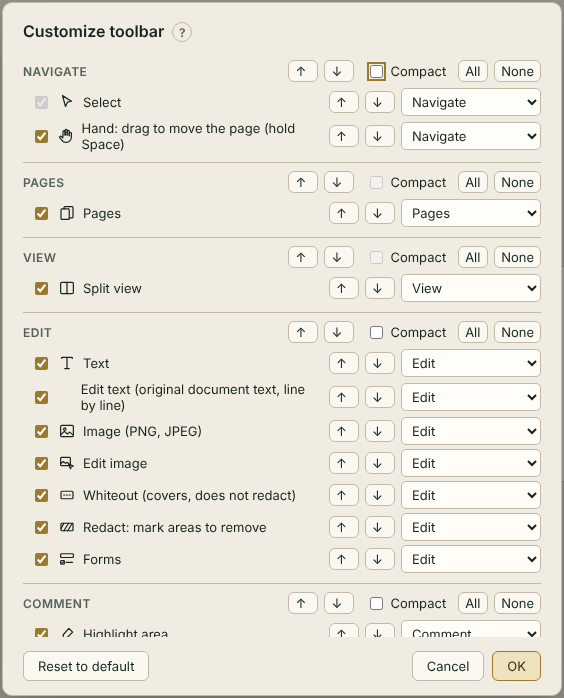
Each group (Navigate, Pages, View, Edit, Comment, Stamp and sign) has its own box:
| Control | What it does |
|---|---|
| ↑ / ↓ next to the group name | Move the whole group left or right on the toolbar |
| Compact | Fold the group's tools into one button (needs at least two tool buttons) |
| All / None | Show or hide every tool in the group |
| Checkbox next to a tool | Show or hide that tool |
| ↑ / ↓ next to a tool | Move the tool up or down within its group |
| Group list next to a tool | Move the tool to the end of another group |
Click OK to apply, Cancel to discard, or Reset to default to return to the original layout (then OK to keep it). Your layout is remembered.
Note
Select cannot be hidden. A hidden tool keeps its menu item and keyboard shortcut; only the button goes.
Hide one tool quickly
Right-click a tool button and choose Hide followed by the tool's name.
Compact toolbar
View ▸ Toolbar: Compact folds every group except Navigate. A compact group shows one button — the tool you used last — and a small arrow that lists the group's other tools. View ▸ Toolbar: Expanded unfolds all groups again.
Narrow windows
When the toolbar does not fit, the last buttons move into the » (More tools) button and come back when there is room. In the app: Help ▸ Show me