A tour of the window
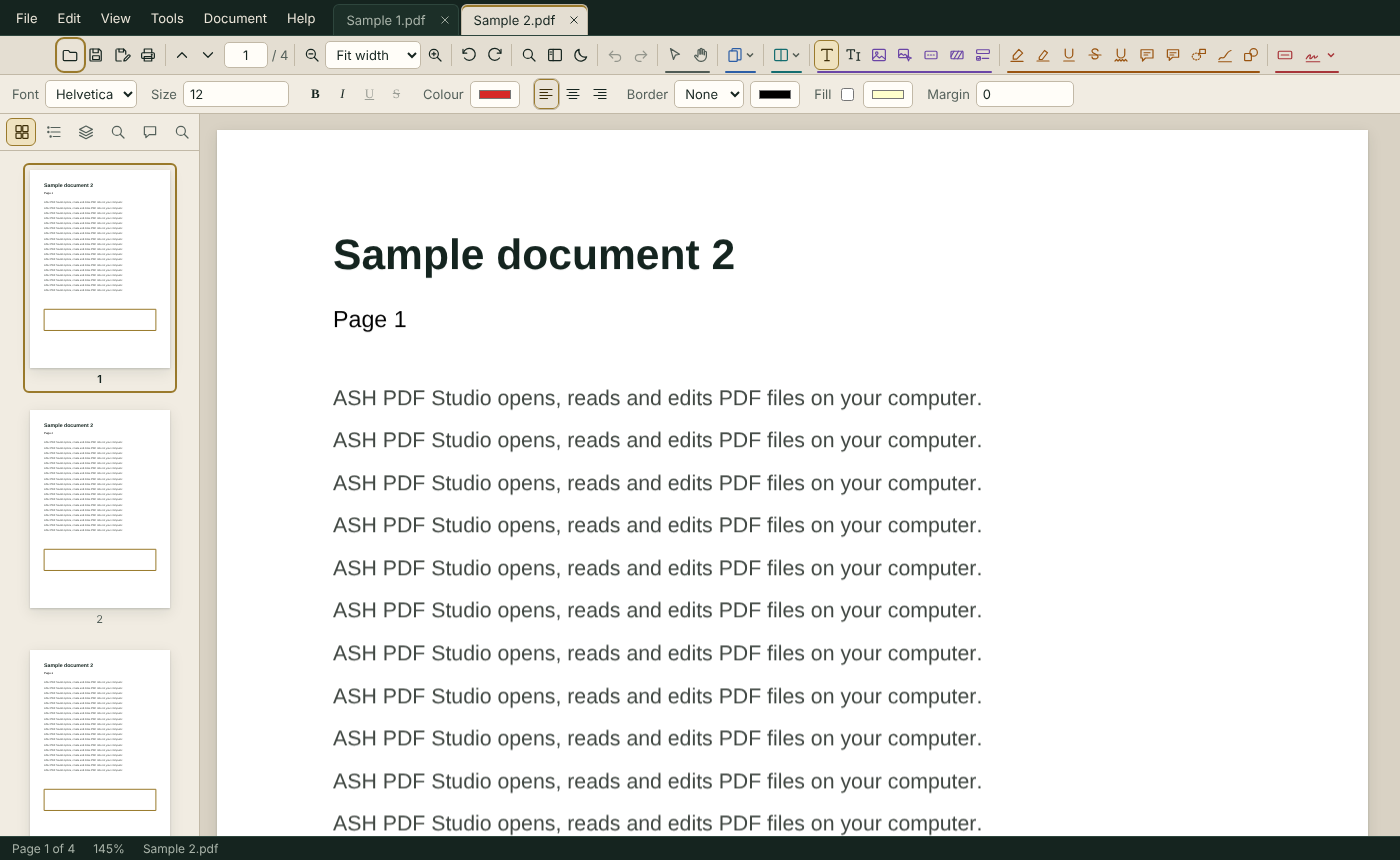
From top to bottom the window has the menu bar and document tabs, the toolbar, the options bar, the page view (with the sidebar on the left) and the status bar.
Menus
The menu bar holds File, Edit, View, Tools, Document and Help. Click a menu name to open it; while a menu is open, move the mouse over another name, or press ← / →, to switch. Items that do not apply right now are greyed out. In the app: Help ▸ Show me
Document tabs
Each open PDF has a tab next to the menus. A dot (●) on a tab means it has unsaved changes; a lock means the file is encrypted. See Opening files and working with tabs. In the app: Help ▸ Show me
Toolbar
The left part of the toolbar has fixed buttons:
| Buttons | What they do |
|---|---|
| Open, Save, Save as, Print | File commands |
| Previous page, Next page, page box | Move through the document |
| Zoom out, zoom list, Zoom in | Change the magnification |
| Rotate page left / right | Rotate the selected pages; saved with the file |
| Find, Show / hide sidebar, theme | Search, sidebar and light/dark theme |
The right part holds the tools, in groups: Navigate (Select, Hand), Pages, View (Split), Edit, Comment, and Stamp and sign. Hover over a button to see its name and shortcut. When the window is too narrow, the last buttons move into the » (More tools) button. In the app: Help ▸ Show me
Click a tool to use it; click it again, or press its key again, to go back to Select. To choose which tools appear, see Customising the toolbar.
Options bar
Below the toolbar, the options bar shows the settings of the current tool or of the selected object, such as colour, line width or font. It is hidden when there is nothing to set. In the app: Help ▸ Show me
Sidebar
Press Ctrl+B (or F4), or click the sidebar button, to show or hide the sidebar with the page thumbnails. In the app: Help ▸ Show me
Status bar
At the bottom: the current page (for example “Page 3 of 12”), the zoom, an unsaved-changes marker and the file name. Encrypted files show Encrypted · read-only.